Last updated: October 15, 2026
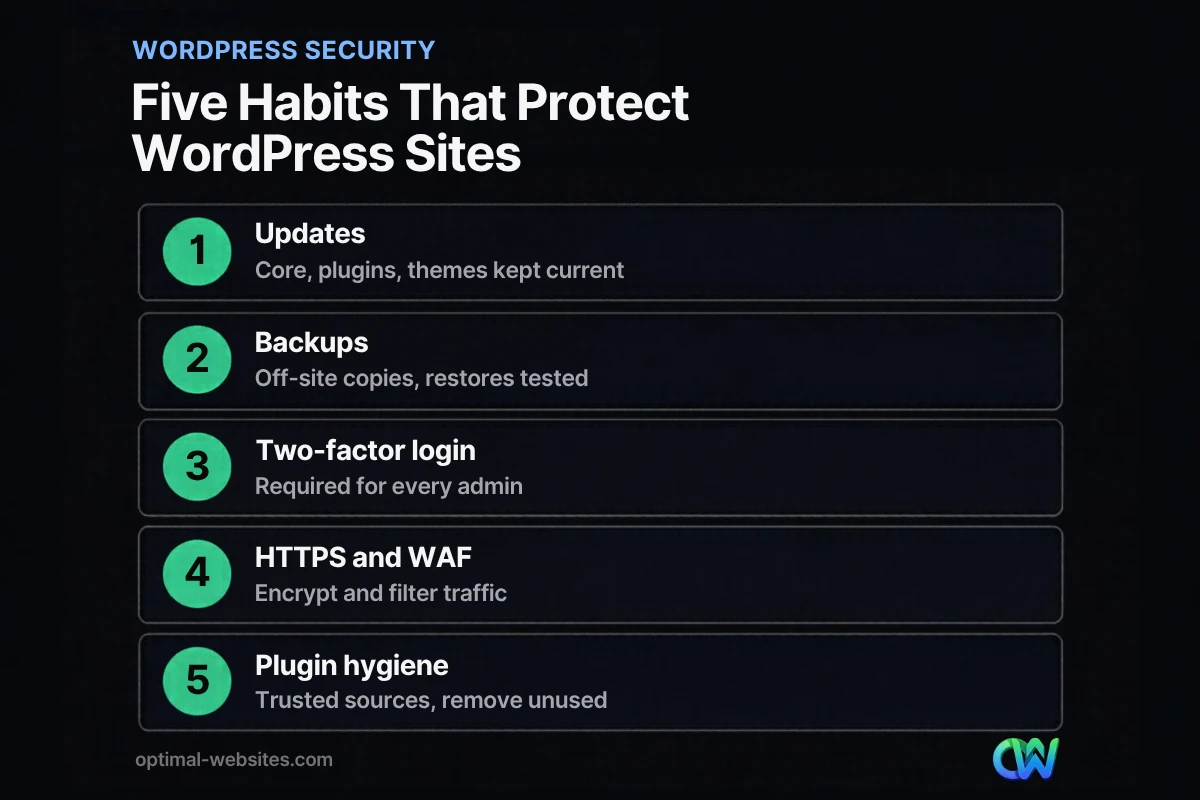
Quick answer: WordPress website security comes down to a few steady habits: keep WordPress core, plugins and themes updated, keep tested off-site backups, require two-factor authentication for admins, give each user the lowest role they need, run the whole site on HTTPS, filter traffic with a firewall, and remove plugins you do not use.
A hacked website does not just look bad. It can redirect visitors to spam, get flagged by browsers, leak form submissions and knock your lead flow offline for days while you clean it up. For a contractor, law firm or local service business, that means lost calls and lost trust. The good news is that WordPress website security is mostly about routine, not expensive tools. This guide walks through what actually protects a WordPress site, a checklist you can work through this week, and a simple maintenance schedule so the site stays protected after launch.
Key Takeaways
- Most WordPress security work is maintenance: updates, backups and access control done on a schedule.
- Outdated plugins and themes are the first thing to fix, and unused ones should be deleted, not just deactivated.
- Two-factor authentication on every administrator account is one of the highest-value changes you can make.
- Backups only count if they are stored off the server and you have tested a restore.
- HTTPS, a web application firewall and good hosting add layers that catch what the basics miss.
What is WordPress website security?
WordPress website security is the set of practices that keep your site’s software, accounts, data and visitors protected from unauthorized access and malicious code. It covers the WordPress core files, your theme and plugins, the database, the hosting account and every person who can log in.
No site is completely immune to attacks. The goal is to make your site a hard target, limit the damage if something does go wrong, and be able to recover fast. The WordPress.org hardening guide frames it the same way: reduce the risk with layers, and keep recent backups so you can roll back to a clean copy.
Why small business sites get targeted
Most attacks on small business websites are automated. Bots scan the web for known weaknesses in popular plugins, weak passwords and outdated installs, then exploit whatever they find. Your site does not need to be famous to be found. It only needs one unpatched plugin or one reused password.
Why do WordPress updates matter so much for security?
Updates matter because they close known security holes. Once a vulnerability is published, attackers start scanning for sites that have not patched it, so every week you wait increases the risk.
WordPress.org’s hardening guide is direct about this: always keep up to date with the latest version of WordPress, because older versions do not keep receiving security fixes. The same guide tells site owners to make sure their plugins are always updated. CISA’s cyber guidance for small businesses calls keeping systems patched one of the most cost-effective ways to improve your security posture, and recommends turning on automatic updates where possible.
Core, plugins and themes
Your site has three layers of software to keep current:
- WordPress core. Minor security releases can update automatically. Major releases deserve a quick test first.
- Plugins. These are the most common weak spot because a typical business site runs many of them, from many different developers.
- Themes. Even an inactive theme sitting in your install is code that can be exploited. Keep one active theme and, at most, one default theme as a fallback.
Update safely, not blindly
Updating a live site without a plan can break a layout or a contact form. A safer routine is: take a fresh backup, update on a staging copy or during a low-traffic window, then check your key pages and forms. If you run Elementor Pro, update Elementor and Elementor Pro together so their versions stay compatible.
How should you back up a WordPress site?
Back up both your files and your database on a regular schedule, store copies somewhere other than your web server, and test that you can restore them. A backup you have never restored is a guess, not a plan.
The WordPress.org hardening guide recommends backing up your data regularly, including your MySQL databases, and keeping snapshots over time so you have a copy from before any compromise. CISA adds the step most owners skip: regularly test partial and full restores, and write down how you would restore the site.
What a good backup setup looks like
- Automatic schedule. Daily database backups for sites with forms or orders, weekly full backups at minimum.
- Off-site storage. Cloud storage or your host’s separate backup system, not a folder on the same server.
- Several versions. Keep enough history to go back to a point before a problem started, since infections are not always noticed right away.
- A tested restore. Restore to a staging site at least once a quarter so you know the process works.
How do you lock down WordPress logins?
Protect logins with strong, unique passwords and two-factor authentication, and limit who has administrator access. Stolen or guessed passwords remain one of the easiest ways into any website.
Strong, unique passwords
Every account needs its own long password. Reusing the same password across your email, hosting and WordPress means one breach elsewhere can open your website. CISA’s Secure Our World campaign recommends strong passwords and a password manager, which makes unique passwords practical for your whole team. The older point from our original network security article still holds: never share one login across people or systems.
WordPress two-factor authentication
Two-factor authentication (2FA) means a login needs something beyond the password, such as a code from an authenticator app or a hardware security key. WordPress.org’s hardening guide recommends two-step authentication as an extra layer, and CISA advises enabling MFA for all system administrator accounts because attackers target them. CISA also notes that any form of MFA is better than none, and that FIDO security keys are the widely available option that resists phishing.
What does least privilege mean in WordPress?
Least privilege means each person gets the lowest WordPress role that lets them do their job, and nothing more. If an account with limited access is compromised, the damage stays limited too.
WordPress includes default roles described in the WordPress roles and capabilities documentation: Administrator, Editor, Author, Contributor and Subscriber (plus Super Admin on multisite networks). A practical setup for a small business looks like this:
- Administrator: one or two trusted people, or your web partner. Not the whole office.
- Editor: the person who manages blog posts and page content day to day.
- Author or Contributor: outside writers who only need to submit their own posts.
Review your user list every quarter. Remove former employees, old agencies and freelancers who finished their projects. The hardening guide also applies least privilege below the dashboard: database users and file permissions should allow only what WordPress needs, with most files writable only by your own account.
Do HTTPS and a firewall really help?
Yes. HTTPS encrypts data between your visitors and your site, and a web application firewall (WAF) filters malicious requests before they reach WordPress. Together they cover risks that updates and passwords cannot.
HTTPS everywhere
HTTPS should cover every page, not just the contact form. The WordPress.org hardening guide describes requiring encrypted connections for administration as the strongest protection for your dashboard, and recommends SFTP instead of plain FTP for file transfers. Most quality hosts include free SSL certificates, which is one reason it pays to spend time choosing reliable small business hosting.
Web application firewall
A web application firewall inspects incoming traffic and blocks known attack patterns, brute-force login attempts and bad bots. The hardening guide lists three common options: a security plugin, a server-level firewall such as ModSecurity, or a reverse-proxy service that filters traffic before it reaches your server. Many small businesses get good coverage from a reputable security plugin combined with a host that runs its own firewall.
How do you keep plugins from becoming a security risk?
Install plugins only from trusted sources, keep them updated, and delete any you do not actively use. Fewer, well-maintained plugins mean fewer ways in.
The hardening guide recommends getting plugins from trusted sources such as the WordPress.org plugin directory and removing plugins you are not using. Before installing anything new, check that it was updated recently, works with your current WordPress version and comes from a developer with a track record. Avoid “nulled” copies of premium plugins; they are a common way malware gets installed.
In our own builds at Optimal Websites, we lean on Elementor Pro for layout, forms and popups instead of stacking separate plugins for each feature. That keeps the plugin list short, which helps both security and page speed. If you are auditing your own list, our guide to the plugins most business sites actually need is a useful starting point.
WordPress security checklist for business owners
Use this WordPress security checklist to audit your site in an afternoon. Each item maps to the guidance above.
- [ ] WordPress core is on the latest version
- [ ] All plugins and themes are updated, and unused ones are deleted
- [ ] Automatic backups run on a schedule and are stored off the server
- [ ] A restore has been tested within the last three months
- [ ] Every administrator uses a unique password and two-factor authentication
- [ ] Only one or two people hold the Administrator role
- [ ] Former employees, agencies and freelancers have been removed
- [ ] The entire site loads over HTTPS, and file transfers use SFTP
- [ ] A web application firewall or security plugin is active
- [ ] Plugins come only from trusted sources, with no nulled copies
- [ ] Hosting, domain and email accounts also use 2FA
How often should you do WordPress maintenance?
WordPress maintenance works best on a fixed schedule: quick checks weekly, deeper reviews monthly and quarterly. Small, regular tasks prevent the large, expensive cleanups.
| Frequency | Task | Why it matters |
|---|---|---|
| Weekly | Apply plugin, theme and core updates after a backup | Closes known vulnerabilities quickly |
| Weekly | Confirm backups ran and stored off-site | Ensures a clean copy exists |
| Weekly | Test contact and quote forms | Catches broken lead flow early |
| Monthly | Review security plugin or firewall alerts | Spots repeated attacks or odd logins |
| Monthly | Remove unused plugins and themes | Shrinks the attack surface |
| Quarterly | Audit user accounts and roles | Enforces least privilege |
| Quarterly | Test a full restore on staging | Proves backups actually work |
| Yearly | Review hosting, SSL and domain renewals | Avoids expired certificates and lapsed domains |
Skipping this schedule is how sites slowly fall behind, which is one of the hidden costs of an outdated website. A well-maintained site also tends to stay faster, since bloated plugins and old code drag down performance.
How Optimal Websites Can Help
Optimal Websites, a WordPress web design agency based in Delaware, builds fast, mobile-first sites with Elementor Pro for contractors, construction firms, law firms, healthcare practices and local service businesses. We plan security into the build itself, with a lean plugin stack, HTTPS and sensible user roles in place before launch. If you are still deciding on a platform, here is why WordPress works well for business sites.
After launch, our support and maintenance service can take routine upkeep like the tasks in this article off your plate, so you can focus on running your business. We also train every client with video tutorials so your team can edit content safely without needing administrator access to everything. Learn more about our WordPress web design and development and website speed optimization service, or see our website packages.
Frequently Asked Questions
Is WordPress secure for a business website?
Yes, WordPress can be very secure for a business website when it is maintained properly. Most WordPress website security problems come from outdated plugins, weak passwords and poor hosting rather than the core software itself. Keeping everything updated, using two-factor authentication, limiting admin accounts and keeping off-site backups covers the majority of real-world risks for small business sites.
How do I know if my WordPress site has been hacked?
Common signs include unexpected redirects to spam sites, new admin users you did not create, strange pages or links in search results, browser warnings, sudden slowdowns and warnings from your host. If you see any of these, change all passwords, check your user list and restore from a clean backup or bring in a professional to clean the site.
Do I need a security plugin for WordPress?
A security plugin is not required, but it is a practical way for most small businesses to add a firewall, login protection and alerts. It does not replace updates, backups or two-factor authentication. If your host already runs a server-level firewall, a lightweight plugin focused on login security and monitoring is often enough.
How often should I update WordPress plugins?
Check for plugin updates at least weekly and apply security updates as soon as you can after taking a backup. Delays give automated bots time to find the vulnerability on your site. For important sites, test updates on a staging copy first, then confirm your key pages and forms still work on the live site.
How do I add two-factor authentication to WordPress?
WordPress two-factor authentication is usually added with a reputable plugin from the WordPress.org directory that supports authenticator apps or security keys. Install it, require it for every administrator and editor, and store the recovery codes somewhere safe. Also turn on 2FA for your hosting, domain registrar and email accounts, since they can be used to take over the site.
Should I hire someone for WordPress maintenance?
If nobody on your team has time for weekly updates, backup checks and quarterly reviews, hiring help is usually worth it. A maintenance partner keeps the schedule consistent and can fix problems quickly when an update breaks something. Choose someone who tests updates, keeps off-site backups and documents what they change on your site.
Ready to Get Started?
Want a WordPress site that is fast, secure and kept up to date for you? Request your free quote or call us at (302) 554-9497 to talk through your site.