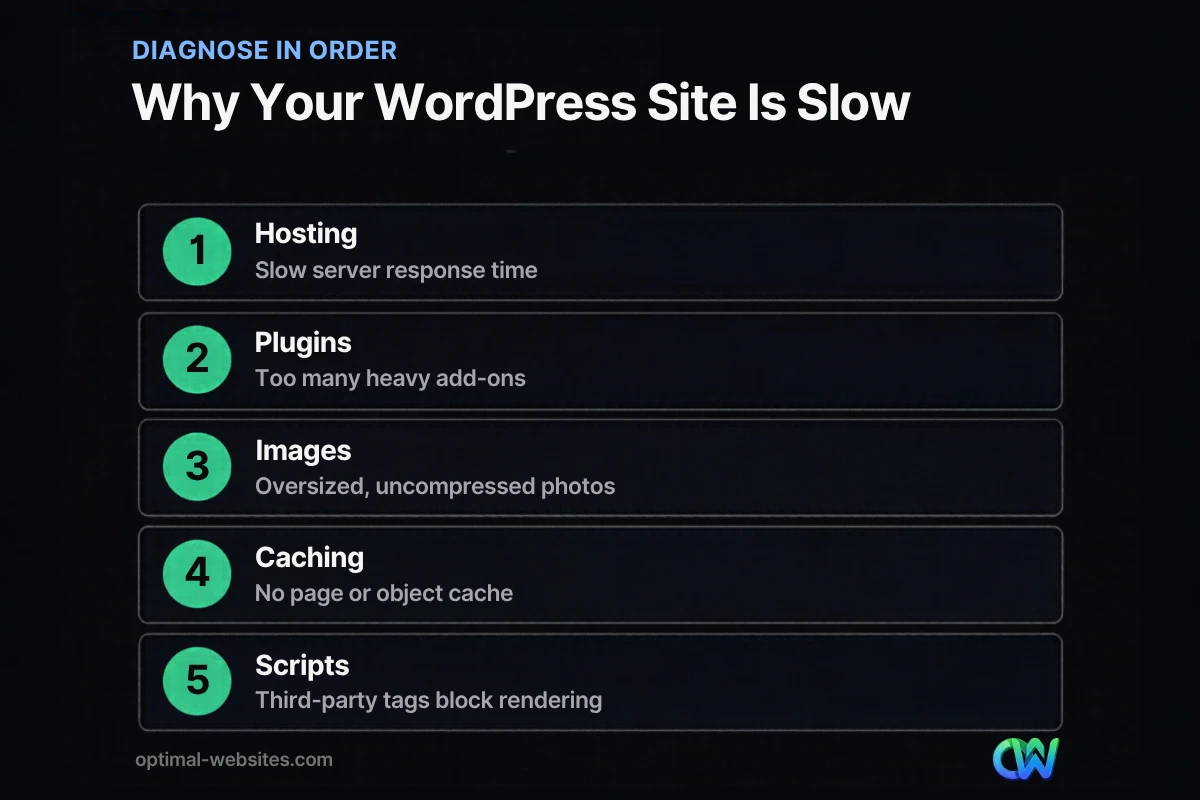
Quick answer: A slow WordPress site is usually caused by one of five things: slow hosting, too many or poorly built plugins, oversized images, missing caching, or heavy third-party scripts. Test the site first, find which cause is costing the most time, then fix it in that order instead of installing another “speed” plugin.
Your website might look fine on your office computer, but a customer on a phone with two bars of signal sees a blank white screen for several seconds and hits the back button. That lost visit is a lost call, quote request or sale. A slow WordPress site also makes it harder to earn rankings, because Google measures real-user loading experience. This guide explains how to diagnose what is actually slowing your WordPress site down, the most common causes we see on small business sites, and the fixes that make the biggest difference for the least money.
Key Takeaways
- Measure before you change anything. PageSpeed Insights and a plugin like Query Monitor show where the time goes.
- Hosting and server response time set the floor. No plugin can fully fix a slow server.
- Plugin count matters less than plugin quality. One badly coded plugin can slow every page.
- Images, caching and third-party scripts are the fastest wins on most small business sites.
- Fix causes in order of impact, retest after each change, and keep a backup before you start.
Why Is My WordPress Site So Slow?
Most slow WordPress sites have a combination of slow hosting, heavy plugins and themes, unoptimized images, and no caching. The good news is that each cause leaves clues you can test for.
WordPress is a dynamic system. Every time someone visits a page, the server runs PHP code, queries the database, and assembles the HTML before sending it. If any part of that chain is slow, the visitor waits. Then the browser has to download images, fonts, CSS and JavaScript before the page looks finished. A delay in either half, the server or the browser, makes the whole site feel slow.
That split is the key to fixing it. Server-side problems show up as a long wait before anything appears. Browser-side problems show up as a page that starts loading but takes a long time to become usable.
How Do You Test What Is Slowing Down WordPress?
Run the site through PageSpeed Insights, check the server response time, and look at what each page loads. Ten minutes of testing saves hours of guessing.
Step 1: Check real-user data and lab data
Open PageSpeed Insights and test your homepage and your most important service page, on mobile. If your site gets enough traffic, the top section shows real-user data from Chrome users, including the Core Web Vitals metrics LCP, INP and CLS. The lab section below runs a simulated test and lists specific opportunities, such as images to compress or scripts to defer.
Step 2: Measure server response time
Time to First Byte (TTFB) is the time between a browser requesting a page and receiving the first byte of the response. According to web.dev guidance on Time to First Byte, good TTFB values are 0.8 seconds or less. If your TTFB is well above that, the problem starts on the server: hosting, database queries, or a lack of page caching.
Step 3: Look inside WordPress
Query Monitor is a free developer plugin that shows database queries, slow hooks and which plugin is responsible for each one. Install it temporarily on a staging copy, load a few pages, and note which components take the most time. Remove it when you finish testing.
What Are the Most Common Causes of a Slow WordPress Site?
The usual suspects are hosting, plugins, images, caching and third-party scripts, in roughly that order of impact. Here is how each one slows things down and how to fix it.
1. Cheap or overloaded hosting
Shared hosting puts your site on a server with many other sites competing for the same CPU and memory. When a neighbor gets a traffic spike, your site slows down too. Old PHP versions make it worse, because newer PHP releases generally run WordPress code faster.
Fix: Ask your host which PHP version you run and upgrade to a currently supported version after testing on staging. If server response time stays high after caching is in place, move to a better plan or a managed WordPress host. Our guide to choosing the right web hosting for a small business compares the options.
2. Heavy plugins
The WordPress optimization handbook puts it plainly: the number of plugins and their performance have a huge impact on site speed. Ten lightweight plugins can be faster than two bloated ones. The worst offenders tend to be all-in-one plugins that load scripts on every page, sliders, social feed widgets, and abandoned plugins that have not been updated in years.
Fix: List every plugin, write down what it does, and ask whether you still need it. Deactivate one at a time on staging and retest. Replace plugins that load assets sitewide with options that load only where they are used.
3. Oversized images
A photo straight from a phone camera can be several megabytes. Uploading it to a page that displays it at 800 pixels wide forces every visitor to download far more data than needed.
Fix: Resize images to the largest size they display at, compress them, and serve modern formats such as WebP. Make sure images below the first screen load lazily, but never lazy-load the main hero image, because that delays the Largest Contentful Paint.
4. No caching
Without page caching, WordPress rebuilds every page from scratch for every visitor. Caching stores a ready-made copy of each page so the server can send it instantly.
Fix: Use your host’s built-in server cache if it has one, or a reputable caching plugin if it does not. Never run two page caching plugins at once. Larger sites with lots of database activity also benefit from a persistent object cache.
5. Third-party scripts and heavy themes
Chat widgets, tracking pixels, review badges, embedded maps and video players all load code from other servers. Each one adds requests, and some block the page from rendering. Multipurpose themes that ship with dozens of features you never use add their own weight.
Fix: Remove tags nobody looks at anymore. Delay non-essential scripts until after the page loads or until the visitor interacts. Replace heavy embeds with a lightweight placeholder image that loads the real video or map on click.
How Do You Speed Up WordPress Without Breaking It?
Work on a staging copy, change one thing at a time, and retest after every change. Speed fixes that break forms or checkout cost more than they save.
- Back up the site and create a staging copy if your host offers one.
- Record a baseline in PageSpeed Insights for your homepage and top two service pages.
- Fix the server first: PHP version, hosting plan and page caching.
- Audit plugins and remove or replace the heaviest ones.
- Optimize images already in the media library and set up automatic compression for new uploads.
- Clean up scripts: remove unused tags and delay the rest.
- Retest and compare against your baseline, then push changes to the live site.
- Check your forms, menus and mobile layout by hand before you call it done.
For a deeper walk-through of each technique, including fonts, layout shift and CDNs, see our full website speed guide.
Which Fixes Make the Biggest Difference for Their Cost?
Caching, image optimization and plugin cleanup usually deliver the most improvement per hour spent. Hosting upgrades cost more but fix problems nothing else can.
| Fix | Typical effort | What it improves | When to prioritize |
|---|---|---|---|
| Page caching | Low | Server response time | Always, if not already active |
| Image resizing and WebP | Low to medium | Load time, LCP | Image-heavy pages, galleries |
| Plugin audit | Medium | Server time, page weight | More than 20 plugins or sitewide scripts |
| Delaying third-party scripts | Medium | INP, render time | Chat, pixels, review widgets |
| PHP upgrade | Low (with testing) | Server time | Running an outdated PHP version |
| Better hosting | Medium | Everything server-side | High TTFB even with caching |
| Rebuild on a lean theme | High | Everything | Old theme, years of patches |
When Is a Slow WordPress Site a Sign You Need a Rebuild?
If the site is built on an outdated theme, depends on plugins that are no longer maintained, and still fails after caching and image work, a rebuild is often cheaper than patching. Years of add-ons create layers of code that no single fix can remove.
At Optimal Websites, a WordPress web design agency based in Delaware, we see this pattern often on sites for contractors, roofers and law firms that were built many years ago and extended piece by piece. When we rebuild with Elementor Pro, we design mobile-first, keep the plugin list short, and set up caching and image handling from day one, so speed is part of the build instead of an afterthought. Rebuilding also gives you a chance to fix navigation and calls to action at the same time.
How Optimal Websites Can Help
If you would rather not spend your evenings deactivating plugins, our website speed optimization service covers testing, hosting review, caching, image optimization and script cleanup, with a before and after report. If the site needs more than a tune-up, you can compare our website packages and pricing for a fast, mobile-first rebuild. Every build includes video tutorials so your team can keep the site updated without slowing it down again.
Frequently Asked Questions
Why is my WordPress site slow only on mobile?
Mobile tests use slower simulated networks and processors, so heavy images and JavaScript hurt more on phones. A slow WordPress site on mobile usually needs smaller images, fewer third-party scripts and less code that runs on page load. Test with the mobile tab in PageSpeed Insights, since that is the version Google primarily uses to evaluate your pages.
How many plugins is too many for WordPress?
There is no fixed number. Plugin quality matters more than plugin count, and one poorly coded plugin can slow a site more than fifteen well-built ones. A good rule is to keep only plugins you actively need, prefer ones that load assets only where they are used, and remove anything that has not been updated in a long time.
Will a caching plugin fix a slow WordPress site?
Caching often makes the biggest single improvement, because it lets the server send ready-made pages instead of rebuilding them. It will not fix oversized images, heavy scripts or a badly overloaded server, though. Treat caching as step one, then keep working through images, plugins and scripts until your WordPress performance scores stay consistent.
Does hosting really affect WordPress speed?
Yes. Hosting controls server power, PHP version and how quickly the first byte reaches the visitor. Cheap shared hosting can leave you with slow response times no matter how well the site is optimized. If your server response time stays high after caching, upgrading to a better plan or managed WordPress hosting is usually the fix.
Can Elementor make WordPress slow?
Any page builder adds code, and Elementor is no exception, but a well-built Elementor site can load quickly. Problems come from stacking add-on widget packs, oversized images and too many nested sections. Using Elementor Pro’s built-in widgets, keeping layouts simple and turning on its performance features keeps pages lean.
How do I speed up WordPress without a developer?
Start with the low-risk steps: turn on your host’s caching or a reputable caching plugin, compress and resize images, and remove plugins you no longer use. Back up first and test after each change. If speed up WordPress efforts stall after those steps, a professional audit can find server or code issues that are harder to spot.
Ready to Get Started?
A faster site means fewer lost visitors and more calls from the people already finding you. Request a free quote for a speed review or rebuild, or call us at (302) 554-9497 to talk it through.