Quick answer: To speed up WooCommerce, start with ecommerce-ready hosting, page caching that excludes cart and checkout, compressed and properly sized product images, fewer plugins, a lean theme, and a clean database with High-Performance Order Storage enabled. Measure product, category and checkout pages before and after each change.
A slow online store costs you sales in a way that is easy to miss. Shoppers rarely complain; they just leave. If you want to speed up WooCommerce, the good news is that most stores share the same handful of bottlenecks: underpowered hosting, heavy images, too many plugins, uncached pages and a database that has grown messy over years of orders. This guide explains why WooCommerce stores slow down, how to find what is hurting yours, and ten practical fixes in the order we usually tackle them. You will also learn what not to cache, which tools to use, and when it makes sense to call in help.
Key Takeaways
- Most slow WooCommerce stores suffer from hosting, images, plugins, caching gaps and database bloat.
- Measure product, category, cart and checkout pages separately; they behave differently.
- Cache catalog pages aggressively, but never cache cart, checkout or account pages.
- Enabling High-Performance Order Storage can reduce database strain on stores with many orders.
- Speed work is ongoing: every new plugin, banner or app can undo past gains.
Why Is My WooCommerce Store So Slow?
A WooCommerce store is usually slow because it does more work on every request than a brochure site: it loads products, prices, stock, carts and sessions, often with many plugins on top. When hosting is undersized or pages are not cached, that extra work shows up as long load times.
Common causes of a slow WooCommerce store:
- Shared or entry-level hosting that cannot handle dynamic cart and checkout requests
- Large product images uploaded straight from a camera or supplier
- Plugin overload, especially several plugins doing similar jobs
- Heavy themes and page builders loading scripts on every page
- No page caching, or caching configured incorrectly for a store
- Database bloat from old orders, expired sessions, transients and revisions
- Third-party scripts such as chat widgets, review apps, pixels and tracking tags
Ecommerce stores also have more page types than a typical site. A fast homepage tells you little about a slow filtered category page or a sluggish checkout.
How Do You Measure WooCommerce Performance?
Measure WooCommerce performance by testing each key page type with PageSpeed Insights and real-user data in Google Search Console, then tracking Core Web Vitals over time. Test before you change anything so you can see what actually helped.
Core Web Vitals are Google’s user-experience metrics for loading, responsiveness and visual stability. According to web.dev’s Core Web Vitals thresholds, a good experience means Largest Contentful Paint within 2.5 seconds, Interaction to Next Paint of 200 milliseconds or less, and Cumulative Layout Shift of 0.1 or less, measured at the 75th percentile of page loads.
Test these pages at minimum:
| Page type | What usually slows it | Metric to watch |
|---|---|---|
| Homepage | Sliders, large hero images | LCP |
| Category or shop page | Many product images, filters | LCP, CLS |
| Product page | Galleries, reviews, upsell widgets | LCP, INP |
| Cart | Uncached dynamic requests | Server response time |
| Checkout | Payment scripts, extra fields | INP |
Ecommerce Core Web Vitals matter most on mobile, where most shoppers browse and where slow processors make heavy scripts feel worse. Our guide on how to fix Core Web Vitals covers each metric in more depth.
How Do You Speed Up WooCommerce? 10 Fixes That Work
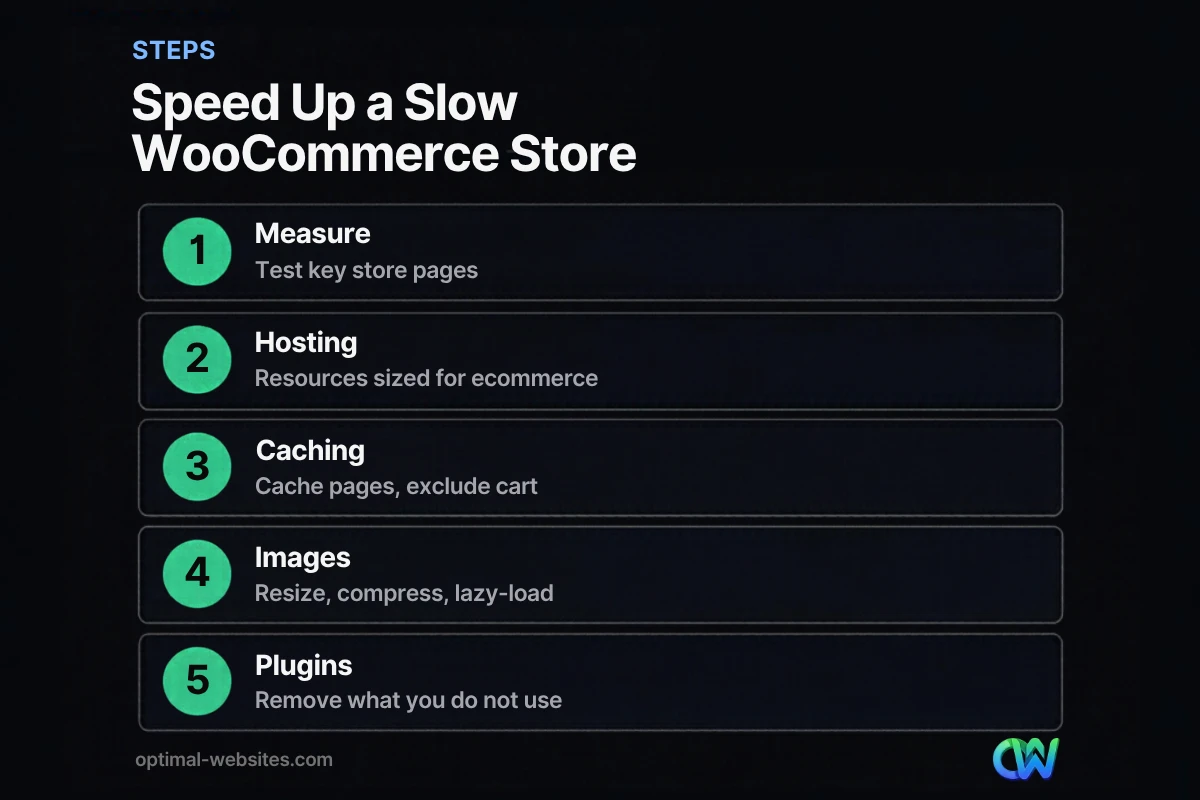
You speed up WooCommerce by removing work the server and browser do not need to do, then making the remaining work faster. These ten fixes cover the bottlenecks we see most often, roughly in order of impact.
1. Upgrade to ecommerce-ready WooCommerce hosting
WooCommerce hosting should provide enough CPU and memory for dynamic requests, current PHP, server-level caching and object caching. Cheap shared plans often struggle as soon as several shoppers check out at once.
2. Set up page caching correctly
Cache home, category and product pages so they load instantly for most visitors. Exclude cart, checkout and my-account pages, and anything that depends on a logged-in session, so customers never see someone else’s cart.
3. Add object caching
Object caching, such as Redis, stores the results of repeated database queries in memory. It helps the uncached parts of a store, like cart and checkout, respond faster. Many managed hosts include it.
4. Resize and compress product images
Upload images at the size they display, compress them, and serve modern formats like WebP where possible. Set width and height so the layout does not jump, and lazy-load images below the first screen, but not the main product image.
5. Audit and trim plugins
List every plugin, what it does and whether you still need it. Remove duplicates and anything unused. One well-built plugin is usually lighter than three that overlap.
6. Use a lightweight theme and lean page templates
A lean theme and carefully built templates load fewer scripts and styles. When we build stores in Elementor Pro, we keep product templates simple, avoid stacking widgets that load their own libraries, and use global styles so the CSS stays small.
7. Enable High-Performance Order Storage
High-Performance Order Storage (HPOS) stores orders in dedicated database tables instead of the general WordPress posts tables. The WooCommerce HPOS documentation explains it has been the default for new stores since WooCommerce 8.2, while older stores need to enable it manually after checking plugin compatibility.
8. Clean up the database
Remove expired transients, old sessions, spam comments and excessive revisions on a schedule. Always take a full backup first and test on staging if the store is busy.
9. Control third-party scripts
Chat widgets, review apps, heatmaps and marketing pixels all add weight. Load them only where needed, delay non-essential scripts until after interaction, and remove tags nobody uses.
10. Simplify checkout
Remove unnecessary fields, keep payment options focused and avoid heavy upsell popups during checkout. A shorter checkout is both faster to load and easier to finish.
What Should You Never Cache on a WooCommerce Store?
Never cache the cart, checkout or my-account pages, or any response that depends on a shopper’s session. Caching those pages can show the wrong cart contents, break payments or expose account details.
Most caching plugins and managed hosts detect WooCommerce and add these exclusions automatically, but confirm them. Also check that:
- Mini-cart counts update correctly after adding a product
- Logged-in customers see their own account and pricing
- Coupon and shipping calculations update on the cart page
- Stock levels stay accurate on popular products
After any caching change, place a test order from start to finish on desktop and mobile.
How Does WooCommerce Speed Affect Sales and SEO?
Faster stores make browsing and buying easier, which supports conversions, and they give Google a better page experience signal. Speed alone will not rank a weak product page, but a slow one can undermine good content and ads.
For shoppers, speed shows up as trust. Pages that load quickly and do not shift around feel professional. Fast product filtering and a responsive checkout reduce the chance that a buyer gives up halfway.
For SEO, Core Web Vitals are part of how Google evaluates page experience. Pair speed work with solid product content, clean category structure and internal links. If you are still planning your store, our guide to building a WordPress ecommerce website covers setup, and our breakdown of what an ecommerce website costs helps you budget for performance from the start.
When Should You Hire Help to Speed Up WooCommerce?
Hire help when you have tried the basics and scores have not improved, when changes risk breaking checkout, or when your store earns enough that a few hours of downtime would cost more than the fix. A specialist can test safely on staging and roll changes out in order.
Signs it is time:
- Cart or checkout takes several seconds to respond
- Speed dropped after a theme, plugin or host change and you cannot find why
- Your store has years of orders and you are unsure about HPOS migration
- You run paid ads and slow product pages are wasting clicks
How Optimal Websites Can Help
Optimal Websites, a WordPress web design agency based in Delaware, builds and tunes WooCommerce stores on WordPress and Elementor Pro with mobile shoppers in mind. Our website speed optimization service covers hosting review, caching setup, image optimization, plugin audits and Core Web Vitals fixes, tested on staging before anything touches your live store. If your store needs a fresh start instead, see pricing for new builds and redesigns.
Frequently Asked Questions
How can I speed up WooCommerce without coding?
You can speed up WooCommerce without coding by upgrading hosting, installing a reputable caching plugin, compressing images, removing unused plugins and enabling High-Performance Order Storage in WooCommerce settings. Test each change with PageSpeed Insights. Leave database cleanup and server tuning to someone experienced if you are unsure, and always back up first.
Why is my WooCommerce cart and checkout so slow?
A slow WooCommerce cart and checkout usually comes from hosting that struggles with dynamic, uncached requests, heavy payment or shipping plugins, and third-party scripts. These pages cannot be page-cached, so server speed and object caching matter most. Trimming checkout fields and scripts also helps responsiveness.
What is the best hosting for WooCommerce?
The best WooCommerce hosting gives you enough CPU and memory for dynamic requests, current PHP versions, server-level and object caching, daily backups, staging and responsive support. Managed WordPress hosts built for ecommerce are often a good fit. Avoid the cheapest shared plans for stores with regular traffic.
Does the number of products slow down WooCommerce?
A large catalog can slow WooCommerce if the database is not optimized or category pages load too many products and filters at once. Good hosting, object caching, sensible pagination and HPOS help stores scale. Image weight on category pages is often a bigger factor than the product count itself.
Is High-Performance Order Storage safe to enable?
High-Performance Order Storage is the default for new WooCommerce stores and is built to improve WooCommerce performance as orders grow. On older stores, check that your plugins are compatible, take a full backup and test on staging first. WooCommerce includes a sync option to help migrate existing orders safely.
How often should I check my WooCommerce store speed?
Check your store speed monthly and after every major change, such as a new theme, plugin, payment method or marketing script. Watch Core Web Vitals in Google Search Console for trends. A quick monthly test of your homepage, a category page, a product page and checkout catches most problems early.
Ready to Get Started?
Want a faster store that sells more? Request a free quote or call (302) 554-9497 and we will review your WooCommerce speed and recommend the fixes that matter most.