Last updated: October 15, 2026
Quick answer: A WordPress ecommerce website is a WordPress site running WooCommerce, a free plugin that adds products, a cart, checkout, payments, shipping and taxes. To build one, plan your catalog and integrations, choose solid hosting, install WordPress and WooCommerce, design mobile-first product and checkout pages, configure payments and shipping, then test real orders before launch.
You want to sell online, but every guide seems to skip the parts that cost money later: slow product pages, a clunky checkout, surprise fees, or a store that can’t talk to your inventory system. Those gaps turn visitors into abandoned carts. A well-planned WordPress ecommerce website avoids them because you own the site, control the design and add only the features your business needs. This guide walks you through how to build an online store with WordPress from planning to launch, with a 10-step build list, a cost and feature table, a launch checklist, and lessons from the stores we build with WordPress and Elementor Pro.
Key Takeaways
- WordPress plus WooCommerce gives you a full online store on software you own. The WooCommerce core plugin is free; you pay for hosting, design, premium extensions and payment processing.
- Planning beats plugins. Decide on products, shipping rules, taxes and business system integrations before you pick a theme.
- Checkout friction is expensive. Baymard Institute puts the average documented cart abandonment rate at about 70%, and surprise extra costs are the top reason shoppers leave.
- Ecommerce website cost depends mostly on catalog size, custom design and integrations, not on WordPress itself.
- Test every payment, shipping and email flow with real orders before you go live.
What is a WordPress ecommerce website?
A WordPress ecommerce website is a WordPress site that can take orders and payments, almost always by running the WooCommerce plugin. WordPress handles your pages, blog and design, while WooCommerce adds the store: products, cart, checkout, customer accounts and order management.
That pairing is popular for a reason. The WooCommerce plugin page on WordPress.org lists more than 7 million active installations and states that the core platform is free. You can add paid extensions for subscriptions, bookings, memberships or advanced shipping when you actually need them.
Who it fits best
A WordPress store works well for:
- Retail product shops selling apparel, gear, parts or accessories.
- Digital products such as downloadable guides, templates or courses.
- Subscriptions and memberships, through extensions.
- Bookings and events, for appointment or ticket sales.
- B2B sellers who need customer-specific pricing, quote requests or account ordering.
If you are still deciding between WordPress and a hosted platform, read our breakdown of how WooCommerce compares to Shopify and other platforms before you commit.
Why build an online store on WordPress instead of a hosted platform?
Choose WordPress when you want ownership, design freedom and content marketing power in one place. Hosted platforms are simpler to start, but you rent the software and work within their rules.
The main advantages
- You own the site and the data. Your products, customers and content live on hosting you control, so you can move hosts without rebuilding.
- Design is not boxed in. With a page builder like Elementor Pro, you can design custom product, cart and checkout layouts instead of living with a theme’s defaults.
- Content and commerce share one site. Blog posts, buying guides and landing pages sit next to your products, which helps search visibility.
- Extensions cover almost any need. WooCommerce connects to many payment gateways, including Stripe, PayPal and Square, plus shipping, tax and accounting tools.
- No platform transaction fee from WooCommerce itself. You still pay your payment processor, but the core plugin does not take a cut of sales.
The honest trade-offs
WordPress puts more responsibility on you. Someone has to keep WordPress, the theme and plugins updated, monitor security, and make sure hosting can handle traffic spikes. Store owners who want zero technical involvement either pay for a maintenance plan or choose a hosted platform. Neither choice is wrong; it depends on how much control you want.
How do you build an online store with WordPress? (10 steps)
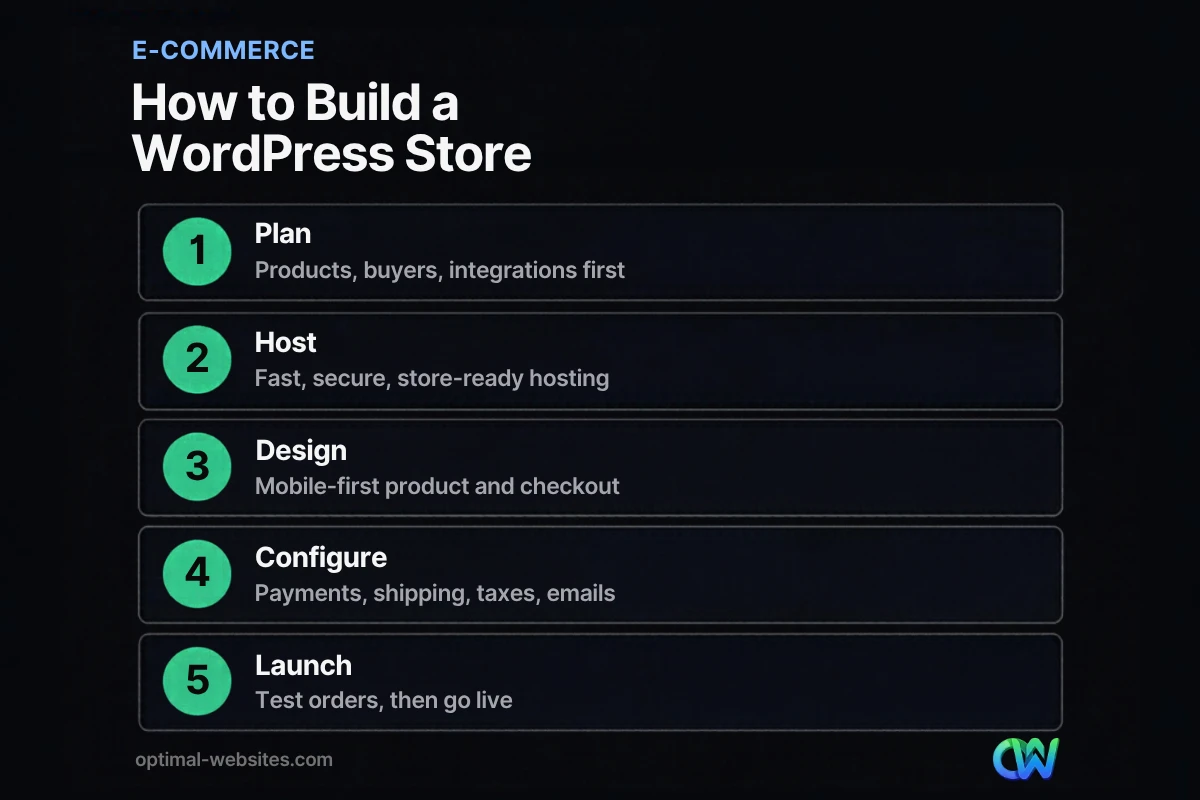
To build an online store with WordPress, plan the business side first, then set up hosting, install WordPress and WooCommerce, design the store, configure payments and shipping, and test before launch. Here is the order we follow on client builds.
- Define what you sell and how. List your products, variations (size, color), pricing rules, whether items are physical or digital, and where you ship. This shapes every later decision.
- Map your integrations. Write down every system the store must talk to: accounting, inventory, email marketing, a CRM, an ERP or a fulfillment partner. Decide which connections are needed on day one and which can wait.
- Register a domain and choose hosting. Pick hosting that supports current PHP and database versions, includes SSL, and has room to grow. Our guide on choosing web hosting for a small business covers what to look for.
- Install WordPress and WooCommerce. Install WordPress, add WooCommerce from the plugin directory, and run its setup wizard to set your store address, currency and product types.
- Pick a lightweight theme and builder. Use a fast theme that is compatible with WooCommerce. We build on Elementor Pro, whose WooCommerce widgets let us design custom product pages, cart and checkout without shortcodes.
- Design mobile-first templates. Design the shop page, category pages, single product template, cart and checkout for a phone screen first, then scale up to desktop.
- Add products the right way. Write unique descriptions, use clear photos, set prices, stock levels, SKUs, weights and categories. Consistent data now saves cleanup later.
- Configure payments, shipping and taxes. Connect a payment gateway, set shipping zones and rates, and decide how sales tax is calculated. Many stores use a tax service extension rather than manual tax tables.
- Set up store emails, policies and tracking. Customize order confirmation and shipping emails, publish return, shipping and privacy policies, and connect analytics so you can measure sales.
- Test, then launch. Place real test orders with every payment method, check emails, refunds and inventory changes, and review every page on a phone before you announce the store.
How do you set up WooCommerce correctly?
A clean WooCommerce setup means the right hosting, the right core settings, and only the extensions you need. Most store problems we fix come from bloated plugin stacks or skipped settings, not from WooCommerce itself.
Hosting and technical basics
WordPress.org’s hosting requirements recommend PHP 8.3 or greater, MySQL 8.0 or greater (or MariaDB 10.11 or greater), and HTTPS support. WooCommerce’s own listing recommends a PHP memory limit of 256 MB or more. Shared hosting built for brochure sites can struggle with cart and checkout pages, which cannot be cached the same way normal pages are.
Core settings to get right
- General: store address, selling and shipping locations, and currency.
- Products: weight and dimension units, reviews, and inventory management with low-stock alerts.
- Shipping: zones (for example, contiguous US, Alaska and Hawaii, international), with flat rate, free shipping thresholds or live carrier rates.
- Payments: at least one card processor plus a wallet option such as Apple Pay, Google Pay or PayPal.
- Accounts and privacy: allow guest checkout, and make account creation optional.
- Emails: brand the templates and send a test of each one.
Payments and fees
Payment processing is a per-sale cost, so check it before you choose a gateway. According to the WooPayments fee schedule, US-issued cards cost 2.9% + $0.30 per transaction, with no setup or monthly fee for online payments, and international cards add 1.5%. Other gateways publish their own rates, so compare them against your average order value.
Keep the plugin stack lean
Every extension adds code, settings and update risk. Start with WooCommerce, your payment gateway, a shipping or tax service if needed, an SEO plugin, a backup tool and a security tool. Add subscriptions, wishlists or product filters only when your catalog or customers call for them.
How much does a WordPress ecommerce website cost?
Ecommerce website cost on WordPress depends on four things: hosting, design, extensions and payment processing. WordPress and the WooCommerce core plugin are free, so your budget goes to the pieces that make the store fast, branded and connected.
| Cost item | What it covers | Typical pricing model | What drives the price |
|---|---|---|---|
| Domain name | Your store’s web address | Annual registration | Extension (.com, .shop) and registrar |
| Hosting | Server, SSL, backups, speed | Monthly or annual plan | Traffic, catalog size, managed vs. shared |
| WordPress + WooCommerce core | Site, products, cart, checkout | Free | Nothing; the core software is free |
| Theme and page builder | Design system and custom templates | Free or annual license | Need for custom product and checkout layouts |
| Extensions | Subscriptions, bookings, shipping, tax | Free or annual license each | Number of features you truly need |
| Payment processing | Card and wallet payments | Per transaction (WooPayments: 2.9% + $0.30 for US cards) | Sales volume, card mix, international buyers |
| Professional design and build | Strategy, design, setup, training | One-time project fee | Catalog size, custom design, integrations |
| Ongoing maintenance | Updates, security, backups, support | Monthly plan or in-house time | Store complexity and update frequency |
Where the money really goes
For most small businesses, the biggest variables are the build and the integrations. A 20-product store with flat-rate shipping is a very different project from a 2,000-product catalog that syncs inventory with an ERP and shows customer-specific pricing.
Budget for ongoing costs, too. Annual extension licenses, hosting renewals and maintenance are easy to forget when you only compare launch prices.
What should B2B sellers plan for before launching an online store?
B2B stores need more planning than retail shops because they must connect to the systems that run the business. Plan the integrations, the rollout and the team before you design a single page.
Start with the business case
Write down why the store exists. Common reasons include letting existing customers reorder without calling, cutting order-entry work for your staff, reaching new buyers, or supporting a changing product mix. A clear reason helps you decide which features matter on day one.
Map the whole customer ecosystem
A B2B store pulls data from some systems and pushes it to others. Typical connections include:
- ERP and order management for stock, pricing and order status.
- CRM for customer accounts, sales reps and follow-up.
- Product information management for specs, documents and complex product data.
- Customer service and contact center tools for support.
- Pricing and quoting tools for contract pricing or configured products.
Launch in phases, not all at once
Integrations are where B2B timelines slip. Instead of treating the store as one giant project, build the critical integrations into the first release and schedule the less important systems for later phases. This product-style, iterative approach gets you selling sooner and lowers the risk of a costly all-or-nothing launch.
Line up the right people
Assign an internal owner for product data and for each connected system. Larger projects may also need a product manager or a developer who knows your APIs.
How do you design a store that converts?
A store converts when shoppers can find a product, trust it, and pay without friction. That comes down to fast mobile pages, clear product content and a short checkout.
Fix checkout friction first
The checkout is where planning pays off. Baymard Institute’s cart abandonment research, updated in September 2025, puts the average documented abandonment rate at 70.22%. Among shoppers who were not just browsing, the top reasons were extra costs that were too high (40%), slow delivery (20%), not trusting the site with card information (19%), forced account creation (18%) and a checkout that was too long or complicated (17%).
Each of those has a direct fix:
- Show shipping costs, or a free shipping threshold, before checkout.
- State delivery times on product pages.
- Display SSL, recognizable payment logos and clear return policies.
- Offer guest checkout.
- Cut every form field you do not need.
Build product pages that answer questions
Strong product pages include multiple sharp photos, a short benefit summary, full specs, price and stock status, shipping and return details, and reviews. Write every description yourself instead of copying manufacturer text, which also helps search visibility.
Design for phones first
Many shoppers browse and buy on their phones, so we design product grids, filters, add-to-cart buttons and checkout fields for thumbs before we touch the desktop layout. Big tap targets, sticky add-to-cart buttons and wallet payments make a real difference on small screens.
Keep it fast
Compress images, serve modern formats like WebP, limit heavy scripts and use quality hosting. Product and category pages should feel instant. For a deeper walkthrough, see our guide to improving website speed.
How do you get your WordPress ecommerce website found on Google?
Get found by giving every product and category page unique content, clean structure and product structured data, then building helpful content around what your buyers search for.
- Unique titles and descriptions for every product and category.
- Logical categories and clean, readable URLs.
- Product structured data. Google’s product structured data documentation explains how markup for price, availability, reviews, shipping and returns can make product results richer, and notes that a Merchant Center feed can improve eligibility for merchant listings.
- Fast, mobile-friendly pages that pass Core Web Vitals (LCP, INP and CLS).
- Supporting content such as buying guides and comparison posts that link to products.
Register the store in Google Search Console, submit your XML sitemap, and watch for indexing issues after launch. For a full playbook, read our practical ecommerce SEO tips.
What should be on your launch checklist?
Before launch, confirm that every page, payment, email and policy works on a real phone and a real card. Use this checklist on the final day before going live.
- [ ] SSL active on every page, with no mixed-content warnings
- [ ] Test orders completed with every payment method, including a refund
- [ ] Shipping zones and rates checked for several addresses
- [ ] Sales tax calculating correctly for your locations
- [ ] Order, shipping and account emails branded and delivered
- [ ] Inventory and low-stock alerts working
- [ ] Guest checkout enabled and checkout fields trimmed
- [ ] Return, shipping, privacy and terms pages published and linked in the footer
- [ ] Product titles, descriptions, images, prices and SKUs reviewed
- [ ] Product structured data validated
- [ ] Google Analytics and Google Search Console connected, sitemap submitted
- [ ] Mobile review of shop, product, cart and checkout pages
- [ ] Page speed checked with PageSpeed Insights
- [ ] Automatic backups and security monitoring running
- [ ] Integrations (accounting, inventory, email, CRM) sending and receiving test data
- [ ] Staff trained to process orders and update products
After launch
Review sales and analytics weekly for the first month, watching for failed payments and checkout exits. Keep everything updated, and test checkout after every major update.
What mistakes should you avoid when building a WordPress store?
Most WordPress store problems are avoidable. These are the ones we see most often when clients come to us for a rebuild:
- Cheap hosting for a growing store. Slow checkout pages lose sales on every visit.
- Too many plugins. Overlapping extensions slow the site and break during updates.
- Copied product descriptions. Duplicate text gives shoppers and search engines no reason to choose you.
- Hidden costs at checkout. Shipping surprises at the last step drive abandonment.
- No maintenance plan. Unpatched plugins are a security and stability risk.
- Skipping real-order testing. Payment and email issues found by customers cost trust.
How Optimal Websites Can Help
Optimal Websites, a WordPress web design agency based in Delaware, builds fast, mobile-first online stores on WordPress with WooCommerce and Elementor Pro. We handle planning, design, product setup, payments, shipping and launch testing, then train you with video tutorials so your team can add products and manage orders without calling a developer.
Our clients include contractors, construction and roofing companies, law firms, healthcare providers and local service businesses, and many add a store to sell products, deposits or consultations alongside their main site. You can learn more about our web design and development services or review our website packages and pricing. Packages start at $999, most projects launch in 2–4 weeks, and online stores are quoted based on catalog size and integrations.
Frequently Asked Questions
Is WordPress good for an ecommerce website?
Yes, WordPress is a strong choice for an ecommerce website when paired with WooCommerce. You get a free core store plugin, full design control, and the ability to run your blog, landing pages and products on one site you own. The trade-off is that you are responsible for hosting, updates and security, either yourself or through a maintenance plan with your web developer.
Is WooCommerce really free?
The WooCommerce core plugin is free to download and use from WordPress.org. It includes products, cart, checkout, orders and basic shipping and tax settings. Your costs come from hosting, a domain, any premium theme or page builder, paid extensions such as subscriptions or bookings, and payment processing fees. WooPayments, for example, charges 2.9% + $0.30 per US card transaction.
How much does a WordPress ecommerce website cost?
Ecommerce website cost on WordPress depends on hosting, design, extensions and payment fees, since WordPress and WooCommerce themselves are free. A simple store with a small catalog costs far less than a large catalog with custom design and ERP or inventory integrations. Budget for recurring costs too, including hosting renewals, extension licenses and ongoing maintenance, not just the launch price.
How long does it take to build an online store with WordPress?
A small store with a modest catalog and standard payments and shipping can often be built in a few weeks. Timelines grow with the number of products, custom design work and integrations. B2B stores that connect to ERP, CRM or order management systems take longer, so launching critical integrations first and adding others in later phases keeps the project moving.
Can I manage my WordPress store myself after launch?
Yes, most owners manage day-to-day tasks themselves after a short training session. Adding products, updating prices, processing orders and issuing refunds all happen in the WordPress dashboard. Technical tasks like plugin updates, security monitoring, backups and checkout testing are where many businesses prefer a maintenance plan, so a bad update never takes the store offline during a busy week.
What do I need for a proper WooCommerce setup?
A proper WooCommerce setup needs hosting that meets current WordPress recommendations (PHP 8.3 or greater, HTTPS), the WooCommerce plugin, a payment gateway, shipping zones and rates, a sales tax method, branded order emails and published store policies. Add only the extensions you need, enable guest checkout, and place test orders with every payment method before launch.
Is WordPress or Shopify better for a small business store?
It depends on how much control you want. Shopify is a hosted platform with a monthly subscription that handles hosting and updates for you. WordPress with WooCommerce gives you ownership, deeper design freedom and stronger content marketing, but you or your developer handle maintenance. Businesses that rely on content and custom design often prefer a WordPress ecommerce website.
Ready to Get Started?
Tell us what you sell and how you want to sell it, and we will map out the right WordPress store for your business. Request a free quote or call us at (302) 554-9497.