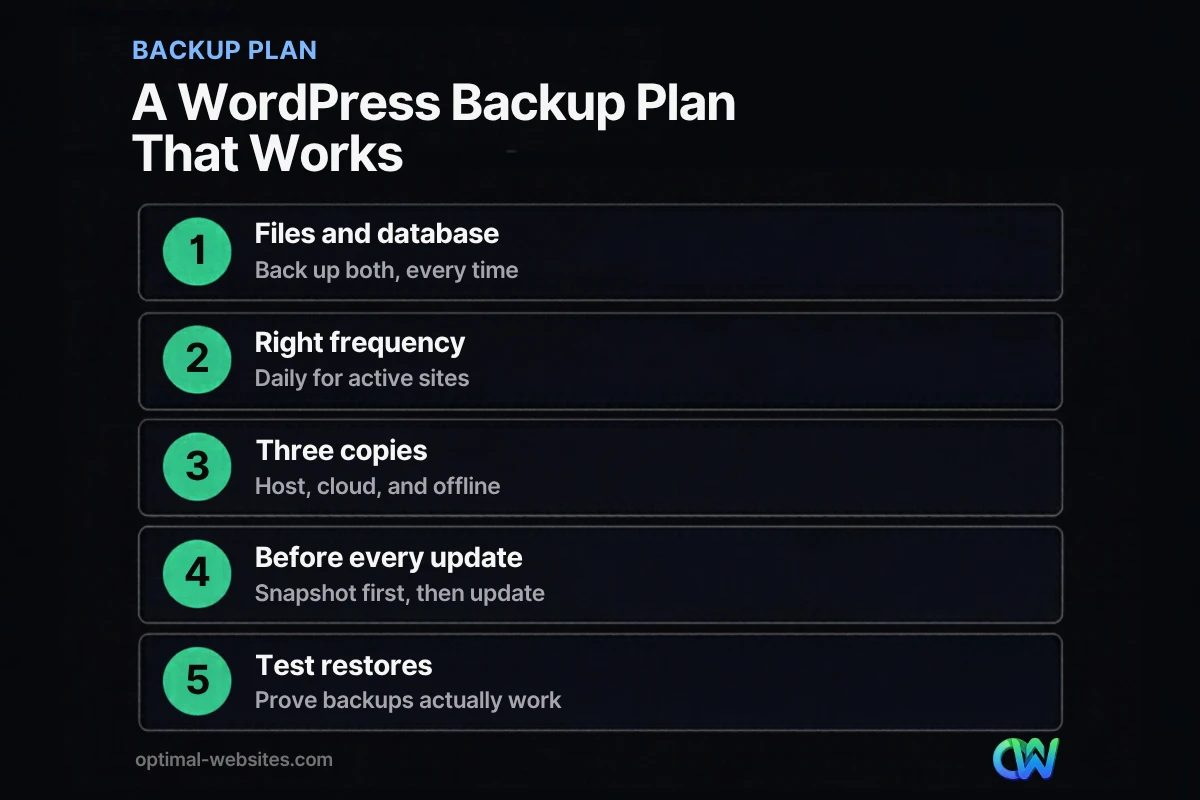
Quick answer: WordPress backups protect your business website by saving copies of both your site files and your database. Back up daily if your site changes often, keep at least three copies including one offsite, take a fresh backup before every update, and test a restore regularly so you know it works.
Most business owners do not think about backups until the day they need one. A plugin update breaks the layout, a hacked site starts redirecting visitors, or a hosting problem wipes recent changes. At that moment, the only question that matters is how fast you can get your site back. Good WordPress backups turn a potential disaster into a minor delay. This guide explains what a complete backup includes, how often to run it, where to store copies, how to choose backup plugins or host tools, and how to restore WordPress site files and data when something goes wrong.
Key Takeaways
- A complete WordPress backup includes both the site files and the database.
- Back up at least weekly; daily if you publish often, take orders or collect leads through forms.
- Follow the 3-2-1 rule: three copies, two types of storage, one offsite.
- Always back up right before updating WordPress, themes or plugins.
- A backup you have never restored is a hope, not a plan. Test it.
What Is Included in WordPress Backups?
Complete WordPress backups have two parts: the files and the database. You need both to fully restore a typical site, according to WordPress.org’s backup documentation.
- Files: WordPress core, your theme, plugins, uploaded images and documents, and configuration files.
- Database: your pages, posts, settings, users, form entries and, for online stores, orders and customers.
A common mistake is copying the website folder and assuming the job is done. The database lives separately, so a folder copy alone misses your actual content and settings.
Why Do Business Websites Need Backups?
Business websites need backups because things go wrong in ordinary ways: a bad update, human error, a security incident or a hosting failure. A recent backup lets you roll back in minutes or hours instead of rebuilding from scratch.
The most common reasons we see sites need a restore:
- A plugin or theme update conflicts with another plugin and breaks pages.
- Accidental changes, such as a deleted page or overwritten design.
- Malware or hacking, which may require restoring a clean version. See our guide on WordPress website security for prevention.
- Hosting issues, including server failures or account problems.
- Failed migrations or redesigns.
For a business that depends on its website for leads, every day offline means calls and form submissions you never receive.
How Often Should You Back Up WordPress?
Back up WordPress at least weekly for small sites that rarely change, and daily for sites with frequent updates, blog posts, form submissions or online orders. WordPress.org’s documentation suggests weekly backups for smaller sites and daily backups for high-activity sites, and always backing up the database before an upgrade.
| Type of site | Suggested frequency | Why |
|---|---|---|
| Brochure site, rarely updated | Weekly, plus before changes | Little new content to lose |
| Service business with forms | Daily | Form entries and edits add up |
| Active blog | Daily | New posts and comments |
| Online store | Daily or more often | Orders and customer data change constantly |
| Any site, before updates | Every time | Easy rollback if something breaks |
What Is a Good Website Backup Plan?
A good website backup plan follows the 3-2-1 rule. CISA’s guide to data backup options describes it simply: keep three copies of important files (one primary and two backups), store them on two different types of media, and keep one copy offsite.
For a WordPress site, that can look like:
- Primary: your live site on the hosting server.
- Backup one: your host’s automatic daily backups.
- Backup two: a plugin or service sending copies to separate cloud storage, away from your host.
Why offsite backups matter
Offsite backups protect you if the problem affects your hosting account itself. If your only backups live on the same server as the site, a server failure, account suspension or serious hack can take out the site and its backups together. Storing a copy with a different provider removes that single point of failure.
Retention: how many versions to keep
Keep several recent versions, not just the latest. WordPress.org suggests keeping three to five copies in different locations. If a problem goes unnoticed for a week, such as quiet malware, you need a backup from before it started.
Should You Use Backup Plugins or Host Backups?
Use both when you can. Host backups are convenient and often run automatically, while backup plugins or external services let you store copies offsite and control your own schedule.
| Option | Pros | Cons |
|---|---|---|
| Host-provided backups | Automatic, server-level, easy one-click restore | Often stored with the same provider; retention may be short |
| Backup plugins | Flexible schedules, send copies to cloud storage | Can slow sites during backups; needs setup and monitoring |
| Managed backup services | Offsite storage, monitoring, restore help | Ongoing cost |
| Manual backups | Full control, good before big changes | Easy to forget; not a long-term plan alone |
When choosing backup plugins, look for scheduled backups of both files and database, offsite storage options, incremental backups for larger sites, and a clear, tested restore process.
How Do You Restore a WordPress Site?
To restore a WordPress site, choose the most recent clean backup, then restore both the files and the database using your host’s tools or your backup plugin. Afterward, clear caches and test key pages and forms.
A safe restore process:
- Identify the problem and when it started, so you pick a backup from before it.
- Take a backup of the current broken state, in case you need something from it.
- Restore files and database from the chosen backup.
- Clear caches (plugin, server and CDN).
- Test the homepage, key service pages, forms and checkout.
- Fix the root cause, such as removing a faulty plugin or patching a vulnerability.
If you restore after a hack, change passwords and review users, because restoring files alone does not close the hole that let attackers in.
How Do You Test Your Backups?
Test backups by restoring one to a staging site every few months. A staging site is a private copy of your website where you can check that everything loads correctly without touching the live site.
Check that pages, images, forms and logins all work. If the restore fails, you have learned something important on a calm day instead of during an emergency.
How Backups Fit Into WordPress Maintenance
Backups are one part of ongoing WordPress website maintenance, alongside updates, security monitoring and performance checks. They work best when someone is responsible for them every month, which is what a website care plan is for.
At Optimal Websites, a WordPress web design agency based in Delaware, we build every site on WordPress with Elementor Pro and set up backups as part of launch, not as an afterthought. For clients across construction, law and local services, that means a site that can be rolled back quickly if an update or mistake ever causes trouble.
How Optimal Websites Can Help
If you are not sure your site is backed up, or you have never tested a restore, we can help. Our web design services include setting up hosting and backups the right way, and we also offer ongoing support and maintenance so updates and backups are handled for you.
Frequently Asked Questions
How often should I back up my WordPress site?
Back up at least weekly if your site rarely changes, and daily if you publish content often, collect form entries or run an online store. Always take a fresh backup before updating WordPress, themes or plugins. Regular WordPress backups mean you can roll back to a recent version without losing much work.
What should a WordPress backup include?
A complete WordPress backup includes your site files (WordPress core, theme, plugins and uploads) and your database (pages, posts, settings, users and form entries). You need both to fully restore your site. Copying only the website folder misses the database, which holds most of your actual content.
Are my host’s backups enough?
Host backups are a good start, but they are often stored with the same provider and kept for a limited time. If your hosting account has a serious problem, those backups may be affected too. Add offsite backups with a separate storage provider so you always have an independent copy.
What are offsite backups?
Offsite backups are copies of your website stored somewhere other than your hosting server, such as a separate cloud storage service. They protect you if your host has an outage, your account is suspended, or your server is compromised. The 3-2-1 rule recommends keeping at least one copy offsite.
How do I restore a WordPress site from a backup?
Pick the most recent clean backup, then restore both files and database with your host’s restore tool or your backup plugin. Clear all caches, then test key pages, forms and logins. If you are restoring after a hack, also change passwords and fix the vulnerability so the problem does not return.
Do backup plugins slow down my website?
Some backup plugins can use server resources while a backup runs, which may slow the site briefly, especially on cheaper hosting. Schedule backups during quiet hours, use incremental backups for larger sites, or rely on server-level backups from your host plus an offsite service to keep the impact low.
Ready to Get Started?
Want peace of mind that your website can be restored quickly? Request a free quote or call (302) 554-9497 to talk about backups and maintenance.