Quick answer: Google Search Console for small business is a free tool that shows how your site appears in Google Search. Verify your site, submit a sitemap, then check four things monthly: the Performance report for clicks and queries, the Page indexing report for errors, Core Web Vitals on mobile and the Manual actions report.
Most small business owners know whether their phone is ringing, but not how people find them on Google. Which searches show your site? Which pages get clicks? Are important pages missing from Google entirely? Google Search Console answers those questions for free, straight from Google. The problem is that it looks technical, so many owners set it up once and never open it again. This guide focuses on Google Search Console for small business: how to set it up, the handful of reports that actually matter, how to read them and a simple monthly routine that takes about 20 minutes.
Key Takeaways
- Search Console shows how Google sees your site: searches, clicks, indexing problems and penalties.
- Verify the domain property so you capture every version of your site.
- Submit your XML sitemap once and check that its status stays successful.
- The Performance report shows the actual queries people type before clicking your site.
- Use Search Console with Google Analytics 4: one shows search visibility, the other shows what visitors do on your site.
What is Google Search Console?
Google Search Console is a free service from Google that reports on your website’s presence in Google Search. It shows which queries bring impressions and clicks, which pages are indexed, what technical problems Google found and whether any manual penalties apply.
It does not change your rankings by itself. It gives you the data to find problems and opportunities, so you can improve content and fix issues that hold your site back. It is a core tool in any plan for SEO for small business.
Search Console vs Google Analytics 4
Search Console covers what happens before the click: impressions, rankings and indexing. Google Analytics 4 for small business covers what happens after the click: pages viewed, time on site and conversions. You need both for the full picture.
How do you set up Google Search Console for small business?
Set up Search Console by adding your site as a property, verifying ownership and submitting your sitemap. It usually takes less than 30 minutes.
- Sign in to Search Console with the Google account your business controls (not a personal account of a former employee or agency).
- Add a Domain property for your domain, which covers every version (www, non-www, http and https).
- Verify ownership by adding a DNS TXT record at your domain registrar. If DNS access is difficult, a URL-prefix property can be verified through your website instead.
- Submit your sitemap in the Sitemaps report. Most WordPress SEO plugins create one automatically.
- Add users for your web designer or SEO provider, with the access level they need, and keep yourself as owner.
On the WordPress sites we build with Elementor Pro, we connect Search Console and submit the sitemap before launch, then hand ownership to the client so the data stays with the business.
Which Search Console reports matter most?
Four reports cover nearly everything a small business needs: Performance, Page indexing, Sitemaps and Core Web Vitals, plus a quick look at Manual actions. Most other reports are useful only for specific situations.
| Report | What it tells you | When to act |
|---|---|---|
| Performance | Clicks, impressions, CTR, position and queries | Falling clicks or pages with high impressions and low CTR |
| Page indexing | Which pages are indexed and why others are not | Important pages listed as not indexed |
| Sitemaps | Whether Google can read your sitemap | Status is not “Success” |
| Core Web Vitals | Pages with poor or slow real-user experience | URLs rated “Poor” on mobile |
| Manual actions | Penalties applied by Google reviewers | Anything other than “No issues detected” |
How do you read the Search Console performance report?
The Search Console performance report shows four metrics for your site in Google Search: clicks, impressions, click-through rate and average position. Google’s Performance report documentation defines average position as the average position of your topmost result.
By default, the report shows the last three months. Change the date range to compare periods, such as this quarter against the same quarter last year.
Use the queries tab as your search queries report
The Queries tab works as your search queries report. It lists the actual words people typed before seeing or clicking your site. Look for:
- Service and city queries where you appear on page two. These are often the fastest wins.
- High impressions with low CTR. Your page shows up but people do not click. Rewrite the title and meta description.
- Unexpected queries. Questions customers ask that you have not answered yet. Turn them into FAQs or new pages.
Check pages and devices
Switch to the Pages tab to see which URLs earn clicks, and the Devices tab to compare mobile and desktop. For most local businesses, mobile matters most.
How do you use the page indexing report?
The page indexing report shows which of your pages Google has indexed and lists the reasons other pages are not indexed. Focus on whether your important pages, such as services, locations and key blog posts, are indexed.
Common statuses and what they mean, according to Google’s Page indexing report guide:
- Crawled, currently not indexed: Google crawled the page but chose not to index it for now. Often a sign of thin or duplicate content.
- Discovered, currently not indexed: Google found the URL but has not crawled it yet.
- Excluded by noindex tag: the page tells Google not to index it. Check that this is intentional.
- Not found (404): the URL no longer exists. Redirect it if it had value.
- Page with redirect: normal for old URLs that now point elsewhere.
After you fix a problem, use the Validate Fix button. Google will email you when it confirms the fix. If your business is missing from search entirely, our guide to a website not showing up on Google walks through the most common causes.
Use URL Inspection for single pages
When you publish or update an important page, paste its URL into the inspection bar at the top of Search Console. It shows whether the page is indexed and lets you request indexing.
How do you submit a sitemap in Search Console?
To submit a sitemap, open the Sitemaps report, enter your sitemap URL (often /sitemap_index.xml or /sitemap.xml on WordPress) and click Submit. The Sitemaps report then shows its submission history and any errors Google found while reading it.
You usually only need to submit once. After that, check that the status shows “Success” and that the number of discovered pages roughly matches the pages you want indexed.
What is a simple monthly Search Console routine?
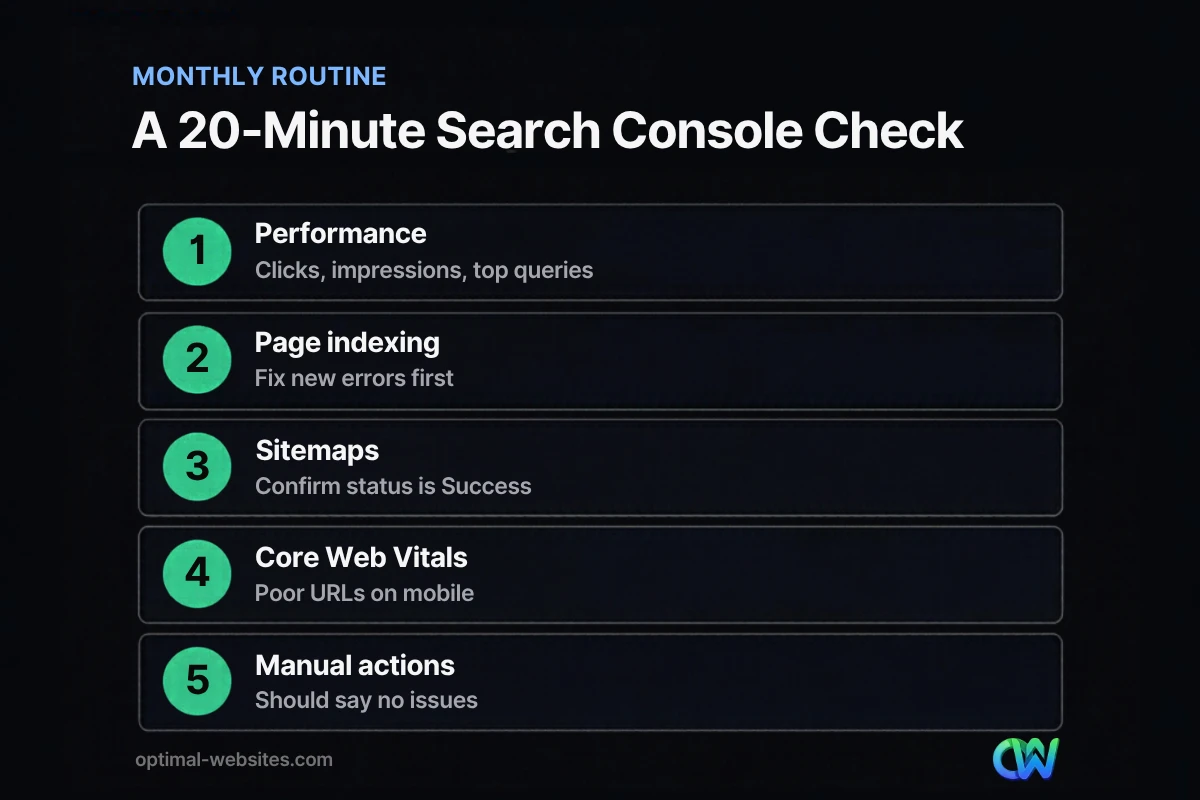
A 20-minute monthly check catches most problems early and shows where to focus your SEO effort.
- Performance: compare last month with the month before. Note top queries and any pages that dropped.
- Page indexing: look for new errors or important pages that are not indexed.
- Sitemaps: confirm the status is still “Success.”
- Core Web Vitals: check for “Poor” URLs on mobile.
- Manual actions and security issues: confirm both say no issues.
- Write down one action for the month, such as rewriting a title or adding a FAQ.
How Optimal Websites Can Help
Optimal Websites, a WordPress web design agency based in Delaware, sets up Search Console and Analytics on every site we launch and can review your reports with you. Our SEO services turn Search Console data into specific fixes and content, and our website packages include on-page SEO basics from day one.
Frequently Asked Questions
Is Google Search Console free?
Yes, Google Search Console is completely free. Any website owner can verify their site and access its reports, including performance data, indexing status, Core Web Vitals and manual actions. Google Search Console for small business is one of the most valuable free tools available, because the data comes directly from Google.
How do I verify my website in Search Console?
Add a Domain property and verify it by adding a DNS TXT record at your domain registrar, which covers every version of your site. If you cannot access DNS, add a URL-prefix property and verify with an HTML file, meta tag, Google Analytics or Google Tag Manager instead.
How often should I check Google Search Console?
Most small businesses should check Search Console once a month, with a quick look after launching new pages or making big site changes. Google also emails property owners about serious issues. A monthly review of performance, indexing, sitemaps and Core Web Vitals is enough to catch problems early.
Why is my page not indexed in Google?
Pages may not be indexed because they are new, blocked by a noindex tag or robots.txt, duplicates of other pages, too thin to be useful or not linked from elsewhere on your site. The page indexing report shows the specific reason. Fix the cause, then request indexing with URL Inspection.
What is a good click-through rate in Search Console?
There is no single good click-through rate, because CTR depends on your position, the query and what else appears on the results page. Compare pages against each other: if a page has high impressions and a lower CTR than similar pages, improve its title and meta description to make it more appealing.
Do I need to submit a sitemap to Google?
Submitting a sitemap is not required, but it helps Google discover your pages, especially on new sites or sites with few external links. On WordPress, SEO plugins generate the sitemap automatically. Submit it once in the Sitemaps report and check periodically that its status shows success.
Ready to Get Started?
Want help turning Search Console data into more calls and leads? Get a free quote or call (302) 554-9497.