Quick answer: If you find your website down, first confirm it is not just your device or network, then check your domain renewal and DNS, look for a hosting outage, and read the exact error message. For WordPress, a recent plugin, theme or update is the most common cause. Restore from a backup only after you know what broke.
Few things feel worse for a business owner than typing in your own address and getting an error. When your website is down, calls and quote requests stop, ads keep spending money and customers start wondering if you are still open. The good news is that most outages have a short list of causes, and many can be fixed in minutes once you know where to look. This guide walks you through what to do in the first fifteen minutes, how to read the most common error messages, how to fix a WordPress critical error, and how to set up uptime monitoring and backups so the next outage is shorter or never happens.
Key Takeaways
- Confirm the outage first: test on another device and network, and use an online status checker.
- Expired domains, DNS changes and hosting outages cause many “site not loading” problems.
- In WordPress, a recent plugin, theme or PHP update is the most common trigger for a crash.
- Read the exact error message; it usually points to the cause.
- Uptime monitoring, regular backups and a staging site make outages shorter and rarer.
Is My Website Down or Is It Just Me?
Check whether your website is down for everyone or only for you by opening it on a different device and network, such as your phone on mobile data. If it loads there, the problem is likely your computer, browser cache or local network rather than the site.
Quick checks:
- Open the site on your phone with Wi-Fi turned off.
- Try a private or incognito browser window to rule out cached files.
- Use an online “is it down” checker to test from outside your network.
- Ask a colleague or friend in another location to try.
If the site loads everywhere except your office, restart your router, clear your browser cache or flush your DNS cache. If it fails everywhere, move on to the steps below.
What Should You Do First When Your Website Is Down?
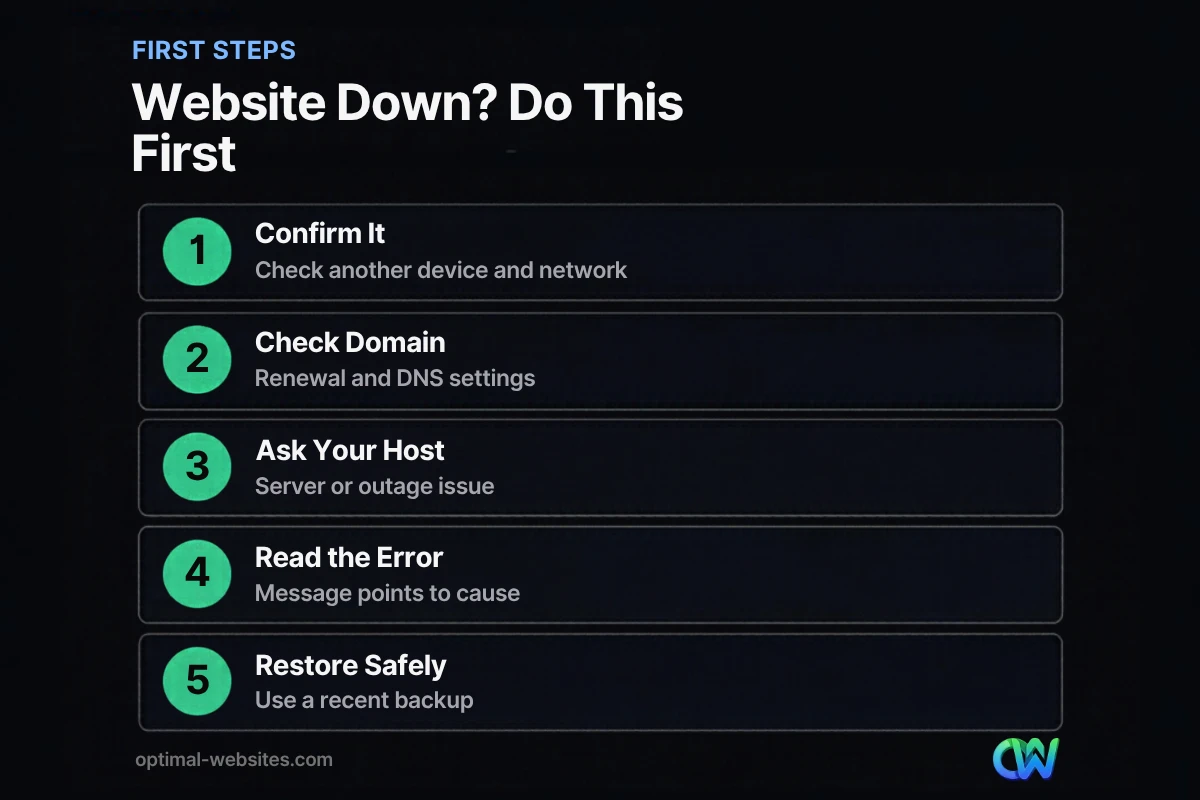
When your website is down for everyone, work through the most likely causes in order: domain, DNS, hosting, then the website itself. This avoids wasting time debugging code when the real issue is an expired domain or a server outage.
1. Check your domain renewal
An expired domain takes your site and often your email offline. Log in to your domain registrar and confirm the domain is active and set to auto-renew with a valid payment method.
2. Check DNS settings
If someone recently changed your DNS records, nameservers or email setup, your domain might point to the wrong server. Compare current settings with what your host requires. DNS changes can take time to spread, so recent edits may cause temporary inconsistency.
3. Check for a hosting outage
Log in to your hosting dashboard and check its status page or support channels. If there is a server-wide hosting outage, the fix is on their side; ask for an estimated resolution time.
4. Read the error message
The exact message tells you a lot. Note it word for word, or take a screenshot, before you change anything.
What Do Common Website Error Messages Mean?
Most error messages fall into a handful of types, and each points to a different cause. Use this table to narrow things down quickly.
| Error you see | What it usually means | Where to start |
|---|---|---|
| “This site can’t be reached” or DNS error | Domain expired or DNS misconfigured | Registrar and DNS settings |
| 500 Internal Server Error | Server or code problem | Host error logs, recent changes |
| 502 or 504 Gateway error | Server overloaded or timing out | Hosting support, resource usage |
| 503 Service Unavailable | Server temporarily unavailable or maintenance | Host status, maintenance mode |
| “There has been a critical error on this website” | WordPress PHP error, often a plugin or theme | Recovery mode email, error log |
| “Error establishing a database connection” | Database down or credentials wrong | Host database status |
| “Briefly unavailable for scheduled maintenance” | Update did not finish | Remove the .maintenance file |
| Blank white screen | PHP error with display turned off | Debug log |
How Do You Fix a WordPress Critical Error?
To fix a WordPress critical error, find which plugin, theme or code change caused it, then disable or roll back that component. WordPress usually emails the site administrator a recovery mode link that lets you log in and deactivate the faulty plugin or theme.
Step by step:
- Check your admin email for a message about a technical issue on your site. It includes a recovery mode link and often names the plugin or theme involved.
- Think about what changed. A plugin update, new plugin, theme edit or PHP version change made shortly before the crash is the prime suspect.
- Deactivate plugins without admin access. The WordPress.org troubleshooting FAQ explains how: rename the plugins folder via FTP or your host’s file manager to deactivate everything, then reactivate plugins one at a time to find the culprit.
- Turn on logging. The WordPress debugging documentation shows how to enable `WP_DEBUG` and `WP_DEBUG_LOG` in `wp-config.php` so errors are written to `wp-content/debug.log`, while `WP_DEBUG_DISPLAY` set to false keeps them hidden from visitors. Turn debugging off again when you are done.
- Switch themes if needed. If plugins are not the cause, temporarily switch to a default theme to test.
- Roll back or restore. Reinstall the previous plugin version or restore a recent backup.
On Elementor sites, also check whether Elementor and Elementor Pro were updated together. Mismatched versions can cause errors, so update both, and test on staging first when possible.
Fixing “briefly unavailable for scheduled maintenance”
This message appears when an update was interrupted. WordPress places a `.maintenance` file in the site’s root folder during updates. Deleting that file usually brings the site back, then rerun the update.
Fixing database connection errors
Confirm with your host that the database server is running. If it is, check that the database name, user and password in `wp-config.php` match what your hosting account shows.
When Should You Restore a Backup?
Restore a backup when you cannot quickly identify or reverse the change that broke the site, or when the site has been hacked or files are corrupted. Choose the most recent backup from before the problem started.
Before restoring:
- Note anything that changed since the backup, such as new orders, form entries or posts, because a full restore may overwrite them.
- Restore to a staging copy first if your host supports it.
- After restoring, update passwords if you suspect a security issue.
A restore is only possible if backups exist and are stored somewhere other than the server that failed. Our guide to a WordPress backup strategy explains what to back up, how often and where.
Does Website Downtime Hurt SEO?
Short downtime rarely causes lasting SEO damage, but long or repeated outages can. Search engines slow down crawling when they see server errors, and pages that keep failing can eventually drop out of results.
Google’s guidance on HTTP and server errors explains that 5xx errors make Google’s crawlers temporarily slow down, and that URLs which persistently return server errors are eventually dropped from the index. If you need planned maintenance, a temporary 503 response is better than an error page or a broken site.
The bigger cost is usually lost business: missed calls, wasted ad spend and visitors who do not come back.
How Do You Prevent Your Website From Going Down?
Prevent most outages with quality hosting, uptime monitoring, regular backups, careful updates and domain auto-renewal. None of these are expensive, and together they turn a crisis into a minor inconvenience.
Prevention checklist:
- Uptime monitoring. Use a monitoring service that checks your site every few minutes and alerts you by email or text.
- Reliable hosting. Choose a host with good support, server-level caching and staging. See our guide to the best web hosting for small business.
- Automatic off-site backups. Daily for active sites, stored separately from your hosting server.
- Staged updates. Test plugin, theme and PHP updates on a staging site before applying them live.
- Domain auto-renewal. With a current payment method and a contact email you actually read.
- Security basics. Strong passwords, two-factor login and a security plugin or firewall.
Many owners hand this work off through a maintenance plan. Our overview of what a website care plan includes explains the options.
How Optimal Websites Can Help
Optimal Websites, a WordPress web design agency based in Delaware, builds and supports fast WordPress sites on Elementor Pro with stable hosting, backups and careful update practices. Our web design and support services cover hosting, support and maintenance, so outages are less likely and faster to fix when they happen. If your site is down right now, contact our team or call us directly.
Frequently Asked Questions
Why is my website down?
A website is usually down because of an expired domain, a DNS change, a hosting outage, or a problem with the site itself, such as a faulty plugin, theme or update. Check those in order. The exact error message often points to the cause, so note it before changing anything.
How do I check if my website is down for everyone?
Open the site on another device and network, such as your phone on mobile data, and use an online status checker that tests from outside your network. If the site loads elsewhere, the issue is probably your browser cache, computer or local network rather than the website itself.
What causes a WordPress critical error?
A WordPress critical error is usually caused by a PHP error in a plugin, theme or custom code, often right after an update or a PHP version change. WordPress typically emails the administrator a recovery mode link. Use it, or deactivate plugins through FTP, to find and disable the faulty component.
How long does it take to fix a website that is down?
Simple problems, like an expired domain, an interrupted update or a single faulty plugin, can often be fixed in minutes to an hour. Hosting outages depend on your provider. Hacked or corrupted sites take longer, especially without a recent backup. Monitoring and backups shorten every type of outage.
Will my site lose Google rankings if it goes down?
Brief downtime rarely causes lasting ranking loss. Google slows crawling when it sees server errors and keeps already indexed pages for a while. Extended or repeated outages are riskier, because pages that keep returning server errors can be dropped. Fix the problem quickly and use a 503 response for planned maintenance.
What is uptime monitoring and do I need it?
Uptime monitoring is a service that checks your website at regular intervals and alerts you when it stops responding. Every business site benefits from it, because you learn about a site not loading before customers do. Many tools offer free or low-cost plans that check every few minutes.
Ready to Get Started?
Need help with a site that is down or keeps crashing? Request a free quote or call (302) 554-9497 and we will help you get back online and stay there.